Download MBXHub
MBXHub - The bridge to everything else.
v0.5.5.0-EV2.1 (current) — Closing Time.
Your charms open as desktop windows now. Click an icon on the Charm Bar and that charm grows into its own window — the mixer beside a game, the streamer control over your work, the Workbench torn into panels. Arrange a few the way you like, hit Save current…, and the whole arrangement becomes a named set you can summon with one key. It’s the easiest way to see the overlay in action — and to make it yours.
- The Charm Bar — Ctrl+Alt+B docks your charms to a screen edge; every icon opens as its own desktop window, MusicBee itself is the first icon, and clicks never steal focus from the app underneath.
- Overlay sets & the View Switcher — snap any arrangement of open windows into a named set; Ctrl+Shift+S pops an Alt-Tab-style list of your sets, each summonable by its own chord.
- StreamSDK charm — drive a StreamUnlimited streamer (Fosi Audio S3 first) from the hub: scan finds it by name, transport / volume / inputs up top, the device’s own settings tree below.
- OVERLAY - HUD (beta) — Ctrl+Shift+M puts a compact now-playing page over whatever you’re doing: transport, queue, browse and reactions at overlay width, with Ctrl+K inside it. It’s a real page too —
/pages/hud.htmlin any browser. - HUD size modes — a chevron rolls the HUD up through three shapes: the full page, a wide player bar, and a minimal transport bar — then back again. Each remembers its own size and position, and the window drags by the artwork or the title.
- Matrix charm — drive an OREI BK-808 HDMI matrix from the hub: pick the input feeding the SPDIF leg, switch SPDIF mode, route any input to any output under your own names, recall and save scenes, power.
latest: v0.5.5.0-EV2.1
Examples
OVERLAY - HUD (v0.5.5.0)
Press Ctrl+Shift+M and it appears over whatever you're doing — and rolls up to fit: the full HUD, a player bar, or just transport. It's a real page too: /pages/hud.html. Click any of the three to see it full size.
The Charm Bar (v0.5.5.0)
Docked to a screen edge — every charm one click from its own desktop window. MusicBee first, the HUD second, your saved overlay sets third. Click an icon and it grows into a window; click again and it closes. Ctrl+Alt+B or the tray. Click to see it full size.
Fosi S3 — StreamSDK charm (v0.5.5.0)
Drives a StreamUnlimited streamer from the dashboard — the first is the Fosi Audio S3. Scan finds it and remembers it, so there are no addresses to type. Transport, volume, mute and the four physical inputs sit at the top; below them the device's own tree: Qobuz Connect, Spotify, Roon Ready and Tidal, Google Cast, AirPlay and UPnP, output mode, and extras for tone, balance and power-on volume. The bar control's dot stays green only while the device is reachable. Click to see the full charm.
Matrix — HDMI matrix charm (v0.5.4.9)
Drives an OREI BK-808 from the dashboard: pick the input feeding the SPDIF leg, switch SPDIF mode, route any input to any output under your own names, recall and save scenes, power. Click the button to open it.
WiiM — device control charm (v0.5.4.7)
Controls the Ultra, Pro and Speaker from the dashboard: transport and volume, source and output, multiroom zones, a ten-band equalizer with the device's own presets, and device status. Scan the network to find them — no addresses to type. Click to see the full charm.
AutoQ Workbench (v0.5.4.2)
AutoQ lives in MusicBee as a first-class navigator tab — and it's theme-aware, following whatever skin MusicBee wears: dark (left) or light (right). A corner toggle pops it out as a floating window. Curate the queue with each track's mood read, dial in a station, flow, and filter, then Generate, Connect a journey, or go ON-AIR. Click to enlarge.
Field Factory (v0.5.3.8)
Experimental Labs facility — see each track's SMFM valence/arousal and raw score bins with their mood meanings, and write the two values into MusicBee Custom* fields. Default-off; enable from Settings → Labs. Click to enlarge.
Setlist → CUE (v0.5.3.5)
Time-coded setlists in the Comment tag (left) parse into a Tracklist tab with per-entry seek (right). One click writes a real .cue sidecar; the album then expands into virtual tracks across browse, search, queue, and the wavescrubber. Click for a closer look.
Cmd+K palette (v0.5.3.0)
Ctrl+K opens a federated search across tracks, albums, artists, playlists, and saved searches — on the dashboard and play.html, same component on both.
XL charms & row breaks
Bigger charm buttons that flow onto multiple rows.
play.html evolved (v0.5.2.9)
In-popover playlist picker (Play / Next / Last / Add). ▾ overflow holds mixer, ARiA, shuffle/repeat, AutoDJ, size cycle. Middle-pane buttons wear charm icons; the cycle button previews the next mode. ⇅ toggles only the right column. ☰ collapses the artist drawer on desktop.
Right-click deep links (v0.5.3.5)
Right-click on the now-playing title, artist, or album for a context menu with Open artist in browse, Copy filename, Copy file path, Copy folder path, and Copy deep link — a shareable URL that lands on the same track in browse.
Waveform scrubber (v0.5.3.4)
Peak + RMS overlay painted behind the played-portion fill, on both the play.html transport bar and the dashboard. New /nowplaying/sound-graph-ex endpoint backs a shared transport-wave.js component.
Custom sorts (v0.5.3.4)
Define your own sort orders over any MusicBee tag (Custom1–16, Virtual1–25, year / sort fields) in Settings. They appear in the Albums tab's sort dropdown next to the built-ins.
Theme settings
Dashboard color picker, per-channel controls.
Explore
Album view library browser.
Shell tray menu
Library Browser
Mixer Charm
Shell Integration
MusicBee RDPAPP
| What's Included | Description |
|---|---|
| mb_MBXHub.dll | REST API, WebSocket, Dashboard, Discovery, AutoQ, TrueShuffle, Charms, Mixer, Device Proxy, Audio Streaming, Radio |
| MBXHub.exe | Shell - SMTC media controls bridge, Windows app identity, system-tray dashboard / Machines submenu, and firewall configuration (requires .NET 8.0 Desktop Runtime) |
Installation
- Pages — stale pages on disk are detected and updated automatically on startup
- Legacy cleanup —
mb_MBXQ.dll,mb_smtc.dll, andfirebug.exeare removed from your Plugins folder if present (matched against previous HALRAD distributions, now merged into MBXHub)
pages\ folder at %APPDATA%\MusicBee\MBXHub\, or use MBXHub Settings → General → Export Pages to overwrite with the latest versions.
Step 1: Download & Extract
Download and extract all files.
Step 2: Copy to Plugins
Copy the DLL and EXE files to your MusicBee Plugins folder:
- Default:
C:\Program Files (x86)\MusicBee\Plugins\ - Portable:
[MusicBee folder]\Plugins\
The SBOM files are informational and don't need to be copied.
Step 3: Start MusicBee
Launch MusicBee. MBXHub loads automatically.
Step 4: Network Access (for other devices)
The dashboard on this PC (http://localhost:8080) needs nothing. To reach MBXHub from your phone or another computer, allow network access — the first-run setup screen does this in one click (with an admin prompt), or set it up by hand from the Tools menu:
First-run Setup
Tools Menu
Firewall Settings
- MBXHub Settings → Firewall → add the rules (needs administrator)
- Or export a script and run it in an elevated console
Step 5: Open Dashboard
Open a browser:
http://localhost:8080You should see the Now Playing dashboard. Use the theme toggle in the header to switch between light and dark modes:
http://localhost:8080/docshttp://localhost:8080/pagesDashboard
Dashboard Search
Compact
Player (Desktop)
Player (Mobile)
Dashboard (embedded)
- Album artwork and track info
- Artist/Genre influence buttons
- Progress bar with seek
- Ban, star rating, and love buttons
- Playback controls
- Volume control (routes to configurable default fader)
- Charm bar — Mixer, Browse, NowPlaying, Player, Phantom, SMTC Link
- Shuffle (Off/Shuffle/DJ) and repeat toggles
- ARiA presets
- Playlist selector
- Theme toggle (light/dark/midnight)
Player Page (/pages/player.html)
- 3-column layout (responsive for tablet/mobile)
- Browse: Albums, Artists, Genres, Playlists, Podcasts, Radio, Moods
- Search with instant results
- Queue panel with Up Next
- Now, Next, +Q buttons on tracks
- Lyrics display
- Fully customizable HTML/CSS/JS
- Edit in
%APPDATA%\MusicBee\MBXHub\pages\
Step 6: Set Up Mood Data (Optional)
AutoQ classifies tracks by mood using 14 audio features extracted by Truedat. Without mood data, AutoQ falls back to genre/BPM metadata estimates.
Mood data lives in a single mbxmoods.json file. MBXHub reads it directly — there's no database, no peer sync, no background scanner. Generate the file once with Truedat and drop it in the right place; AutoQ picks it up on the next startup.
- Enable iTunes XML export - In MusicBee, go to Edit → Preferences → Library and enable "iTunes Music Library.xml" export
- Download Truedat (source) - Extract the folder
- Run Truedat -
truedat.exe "iTunes Music Library.xml"
extract it into \Library\truedat \Library is where the XML is exported, then from the library folder run 'truedat\truedat.exe'
This scans your library and producesmbxmoods.json. Truedat's scan is incremental and resumable — large libraries take hours (or days) but you can stop and restart any time. - Drop
mbxmoods.jsonnext to your library — AutoQ reads it on the next startup. That alone gives mood-aware picks.
Show mood in a MusicBee field (optional)
- Name a
Customfield in MusicBee (Edit → Preferences → Tags (1)), e.g. AutoQ Mood. - MBXHub Settings → AutoQ → Write mood labels to: → pick that field.
- MBXHub Settings → API Access → uncheck Disable library mood tag write.
- Open the AutoQ Workbench → Mood tab → click Retag to write the mood into your library. New plays are tagged automatically.
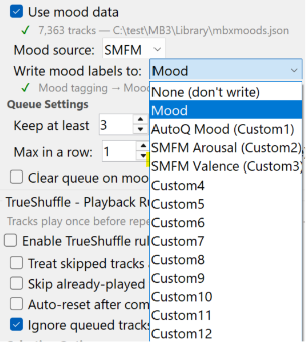
Custom Tags Setup
The custom tag can be configured in mbxhub.json via autoQ.moodTagField and autoQ.moodTagFieldName. This lets you see mood data in MusicBee's column browser, use it in auto-playlists, and sort by mood.
The AutoQ Workbench — click to enlarge
Tuning Console (earlier UI)
System Requirements
| Component | Requirement |
|---|---|
| Operating System | Windows 10 or later |
| MusicBee | MusicBee 3.x or later |
| Framework (Plugin) | .NET Framework 4.8 (included with Windows 10+) |
| Framework (Shell) | .NET 8.0 Desktop Runtime (for MBXHub.exe SMTC bridge — choose the Desktop Runtime column for your architecture) |
Configuration
Open MusicBee → Edit → Preferences → Plugins → Configure
Tools Menu
Configuration Tab
Dashboard Tab
Features Tab
API Access Tab
Settings and logs are stored in:
%AppData%\MusicBee\MBXHub\Files:
mbxhub.json- Configuration (ports, enabled modules)mbxhub.log- Debug log (when debug mode enabled)
Default Ports
| Service | Port |
|---|---|
| REST API + Dashboard | 8080 |
| WebSocket | 8080 |
| Shell SMTC | 8081 (REST port + 1) |
Troubleshooting
| Issue | Solution |
|---|---|
| Port already in use | Open MusicBee → Edit → Preferences → Plugins → MBXHub → Configure to change port |
| Connection refused | Use the Firewall section in MBXHub Settings to add firewall rules, or manually allow inbound TCP on port 8080 |
| The PC can open it, but a phone or other device can’t | If http://localhost:8080 works on the PC but another device on the same Wi-Fi can’t connect — and MBXHub shows no incoming connection — the block is usually on your router, not the PC. Many ISP-supplied routers enable client isolation (also called AP isolation or “guest” mode) or a built-in firewall that blocks device-to-device traffic on your own network. Open your router’s admin page, turn off client/AP isolation, and try lowering or disabling its firewall. This is separate from Windows Firewall — and from UPnP: MBXHub does not use router UPnP/port-forwarding, so leaving that disabled is fine. |
| Plugin not loading | Verify DLL is in correct Plugins folder |
| Pages not updating after upgrade | Page serving: (1) disk file if exists, (2) embedded resource fallback, (3) 404. Disk takes priority for customization, embedded for updates. Delete specific files from %APPDATA%\MusicBee\MBXHub\pages\ and refresh - embedded version served automatically, no restart needed. |
Build with the API
MBXHub has a full REST API. Build your own pages, automate your library, or let an AI do it for you.
# Grab the API cheat sheet
curl http://localhost:8080/llms.txt
Feed that to Claude or any AI and ask for what you want:
$ claude "Read http://localhost:8080/llms.txt and build me a vinyl-crate album browser with cover art"Save the output to %APPDATA%\MusicBee\MBXHub\pages\ and open it at http://localhost:8080/pages/yourpage.html. The API uses relative URLs, so pages work on any MBXHub instance without changes.
Worked examples
| Playlist Creator Charm | A playlist viewer / editor charm for the dashboard — create, rename, reorder, add / remove tracks. | playlist-charm-prompt.md |
| MusicBee MCP server for AI agents | A seven-tool MCP server so Claude Desktop and other agents can drive MusicBee through MBXHub. | mcp.md • musicbee-mbxhub-mcp.zip |
| MusicBee Lyrion (LMS - Squeezebox) plugin | Browse and stream the MusicBee library on Squeezebox players, with AutoQ picking what plays next. | lms-dstm-prompt.md • musicbee-mbxhub-lms-dstm.zip |
Each example name links to the full writeup on the Features page. All of them live in the MBXHub repository on GitHub, alongside a lazy-loading library-tree recipe and the device field notes behind the WiiM, Phantom and Fosi charms.
★ halrad-com/mbxhub on GitHub Browse the samples →
Full API documentation: API Reference • llms.txt
Repositories & Other HALRAD Projects
MBXHub ships as a release from this site. Its repository carries the samples and supplemental material that go with it — the worked examples above, the companion projects, and the hardware field notes the device charms were built from.
| Project | What it is | Repository |
|---|---|---|
| MBXHub | Samples and supplemental material — the worked examples above (dynaport, lms-dstm, mcp, playlist-charm, library-tree) plus device field notes for the WiiM, Devialet Phantom and Fosi hardware. The hub itself is downloaded from this site. |
halrad-com/mbxhub |
| Truedat | The mood and fingerprint extractor CLI that writes the mbxmoods.json AutoQ reads — Step 6 of the install guide above. |
halrad-com/Truedat |
| Firebug | The Windows firewall and URL-ACL helper behind MBXHub's one-click network setup. | halrad-com/firebug |
| Clouseau | MusicBee inspector / debugger. | halrad.com/mbclouseau |